
If you need to call C++ from Swift on iOS or tvOS, you no longer have to write an Objective-C++ bridge. As of 2026, with Xcode 15 and later, Swift talks to C++ directly through its built-in C++ interoperability mode. You expose your C++ header with a module map, flip one build setting, import the module into Swift, and call your class as if it were native. This post walks through a minimal working example that runs on both iOS and tvOS.
A long time ago, I was asked to create some C++ code for specific functionality intended for use in both Android and iOS. I won’t delve into excessive detail, but it was primarily for security reasons.
I must clarify that the main language here is Swift, and very rarely will you need C++ to build an app. There are some fields where writing certain parts in a low-level language gives you an extra layer of security, so in those cases it can be worth the trouble. For everything else, stay in Swift.
When would you actually use C++ in a Swift app?
Reaching for C++ inside an iOS or tvOS project is not a default choice, it is a deliberate one. The cases where I have seen it pay off are narrow but real:
- Shared cross-platform logic. If you already maintain a C++ core that ships on Android through the NDK, reusing the same code on iOS keeps a single source of truth instead of two implementations that drift apart. That was my situation: one security-sensitive routine, two platforms.
- Security-sensitive routines. Keeping certain logic in a compiled, lower-level language raises the effort required to inspect or tamper with it. It is not magic, but it is one more layer.
- Performance-critical paths. Existing, battle-tested C++ for signal processing, cryptography, or heavy math is often faster to reuse than to rewrite in Swift.
If none of those apply, write Swift. The interop is genuinely nice now, but it is still a maintenance cost you only want to take on for a reason.
The point of this article is to demonstrate how to wire up low-level C++, not to teach C++ itself, which is why I am using deliberately basic demo files. Here is an overview of the demo C++ files we will use:
//
//  MyCppClass.hpp
//  cppexample
//
//  Created by davthecoder on 16/09/2025.
//

#pragma once
#include <string>

class MyCppClass {
public:
    MyCppClass(int val);
    std::string greet() const;
private:
    int value;
};
//
// MyCppClass.cpp
// cppexample
//
// Created by davthecoder on 16/09/2025.
//
#include "MyCppClass.hpp"
MyCppClass::MyCppClass(int val) : value(val) {}
std::string MyCppClass::greet() const {
return "Hello from C++, value is " + std::to_string(value);
}//
// module.modulemap
// cppexample
//
// Created by davthecoder on 16/09/2025.
//
module MyCppModule {
header "MyCppClass.hpp"
export *
}//
// cppexample-Bridging-Header.h
// cppexample
//
// Created by davthecoder on 16/09/2025.
// Keep it emptyWould you like to try it yourself? Here is how it should look in your project:
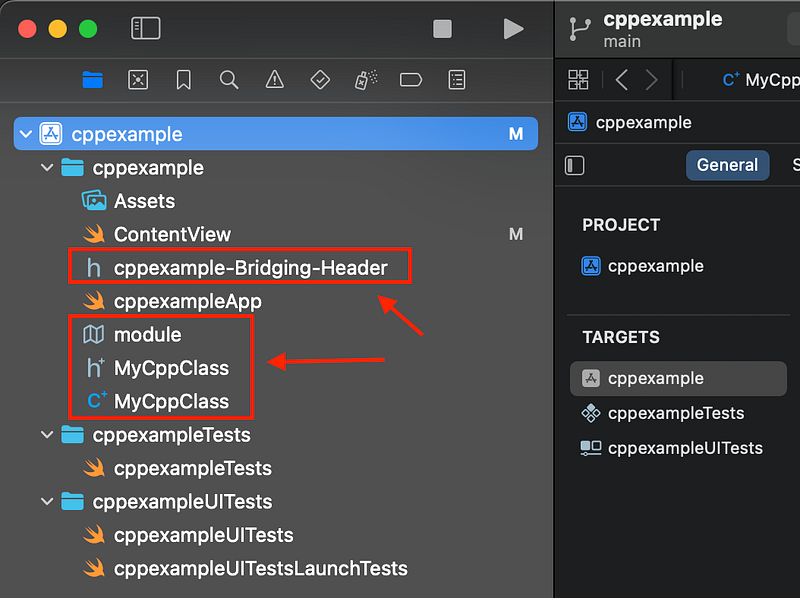
What is the module map doing here?
The module map is the piece that makes the no-bridge approach work. In the older world you would write an Objective-C++ (.mm) wrapper, expose a plain Objective-C interface, and let Swift talk to that. The wrapper was pure boilerplate, and every new C++ type meant more of it.
The module map replaces all of that. It declares a Clang module named MyCppModule that exposes MyCppClass.hpp, and export * re-exports everything the header pulls in. Once Swift’s C++ interoperability is turned on, import MyCppModule gives you the C++ class directly, constructors, methods, and all, with no hand-written glue in between.
The bridging header in the demo is kept empty on purpose. I include it so the project layout matches a standard Xcode setup, but the actual C++ visibility comes from the module map, not the bridging header.
How to call C++ from Swift in Xcode
Once you have created and filled your .hpp, .cpp, and .modulemap files with the code above, there are a couple more steps to take.
- Add your C++ source and header (
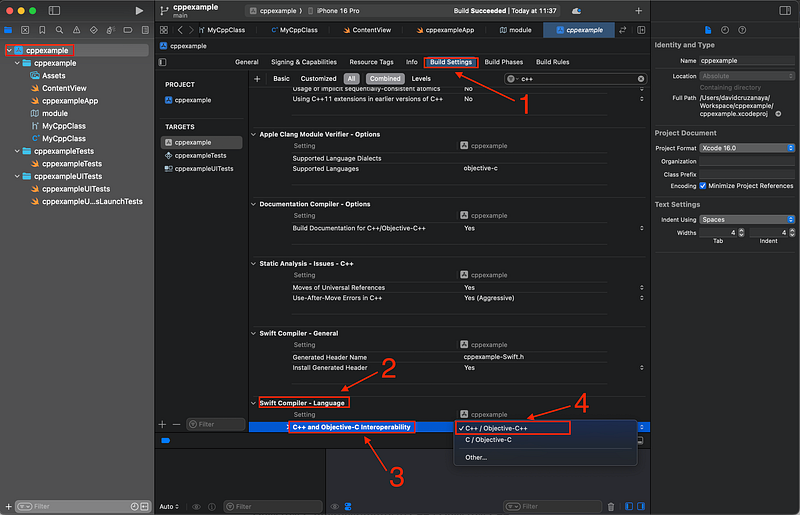
MyCppClass.cppandMyCppClass.hpp) plus themodule.modulemapfile to your Xcode target so they compile with the app. - Open Build Settings, find Swift Compiler - Language, and set C++ and Objective-C interoperability to C++ / Objective-C++. This is the switch that turns on direct C++ interop for the whole target.
- Make sure the module map is discoverable, for example by pointing the Swift compiler’s import search path at the folder that contains
module.modulemap, soimport MyCppModuleresolves. - In your Swift file, add
import MyCppModulealongside your usual imports. - Construct the C++ object and call its methods as if they were Swift:
let cppObj = MyCppClass(42)and thencppObj.greet(). - Build and run on an iOS or tvOS simulator (or device) and confirm the value returned from C++ shows up in your UI.
The first and most important build setting is this one, since nothing else works until interop is enabled:
The second part is actually calling the C++ code from Swift. In this demonstration I use the default Content View that Xcode generates when you create a new project from scratch:
//
//  ContentView.swift
//  cppexample
//
//  Created by davthecoder on 16/09/2025.
//

import SwiftUI
import MyCppModule // <-- Import the C++ module

struct ContentView: View {
    var body: some View {
        VStack {
            let cppObj = MyCppClass(42) // < --Create an instance of the C++ class
            Image(systemName: "globe")
                .imageScale(.large)
                .foregroundStyle(.tint)
            Text("\(cppObj.greet())") // <-- cppObj.greet() Call a method from the C++ class
                .padding()
        }
        .padding()
    }
}

#Preview {
    ContentView()
}
Notice that greet() returns a C++ std::string, and I interpolate it straight into a SwiftUI Text. The interop layer bridges the C++ string into something Swift can print, so there is no manual conversion in this simple case. Not every C++ type maps this cleanly, though. Templates, raw pointers, and ownership-heavy APIs can need extra care or a thin C++ shim with a friendlier surface, so keep the interface you expose to Swift as narrow and value-oriented as you can.
Does this work the same way on tvOS?
Yes. That is the part I like most about this approach. The interop is a compiler feature, not a platform-specific SDK, so the same C++ files, the same module map, and the same build setting carry over to a tvOS target unchanged. You are not writing two integrations, you are writing one and pointing two targets at it.
Once you’ve successfully added the files and made the necessary changes to your Xcode project, you should be able to execute your C++ code on both platforms:


Frequently Asked Questions
Do I still need an Objective-C++ bridge to call C++ from Swift?
No. With Xcode 15 and later and the C++ interoperability build setting turned on, Swift imports C++ modules directly. The old pattern of writing an Objective-C++ (.mm) wrapper just to expose C++ to Swift is no longer required for this kind of integration.
Why is the bridging header empty in the example? Because the C++ visibility comes from the module map, not the bridging header. I keep the bridging header in the project so the layout matches a normal Xcode setup, but you fill in the module map and leave the bridging header empty for this approach.
Where do I turn on C++ interoperability? In Build Settings, under Swift Compiler - Language, set “C++ and Objective-C interoperability” to “C++ / Objective-C++”. That setting applies to the whole target, so once it is on, any Swift file in that target can import your C++ module.
Can I reuse the same C++ code on iOS, tvOS, and Android? Yes, that is a common reason to do this at all. The C++ core stays the same. On Apple platforms you expose it through a module map and Swift interop, and on Android you build it through the NDK. One implementation, shared across targets, which is exactly why I started down this road.
Happy coding.
David Cruz davthecoder.com
Loading comments…