
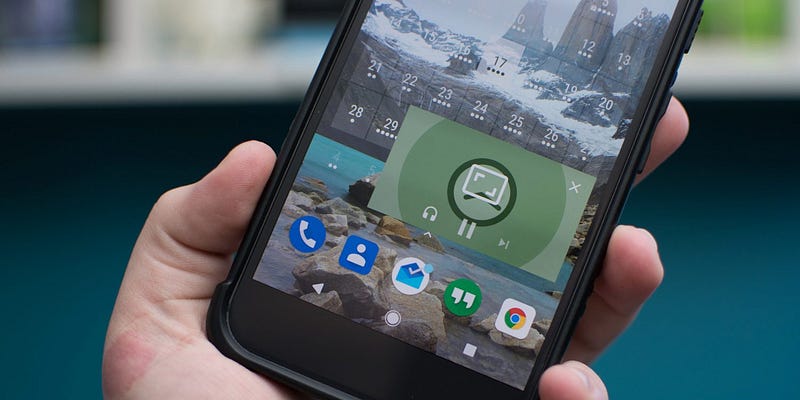
If you want your video to keep playing in a small floating window after the user leaves your app, Picture-in-Picture (PiP) is the Android feature for that. It has shipped since Android Oreo (API 26), it lives at the Activity level, and a basic implementation is about five small changes. The trigger has changed since older tutorials, including my original 2020 version of this post. As of 2026, on Android 12 (API 31) and above, let the system auto-enter PiP rather than calling it by hand from onUserLeaveHint().
What is Picture-in-Picture mode?
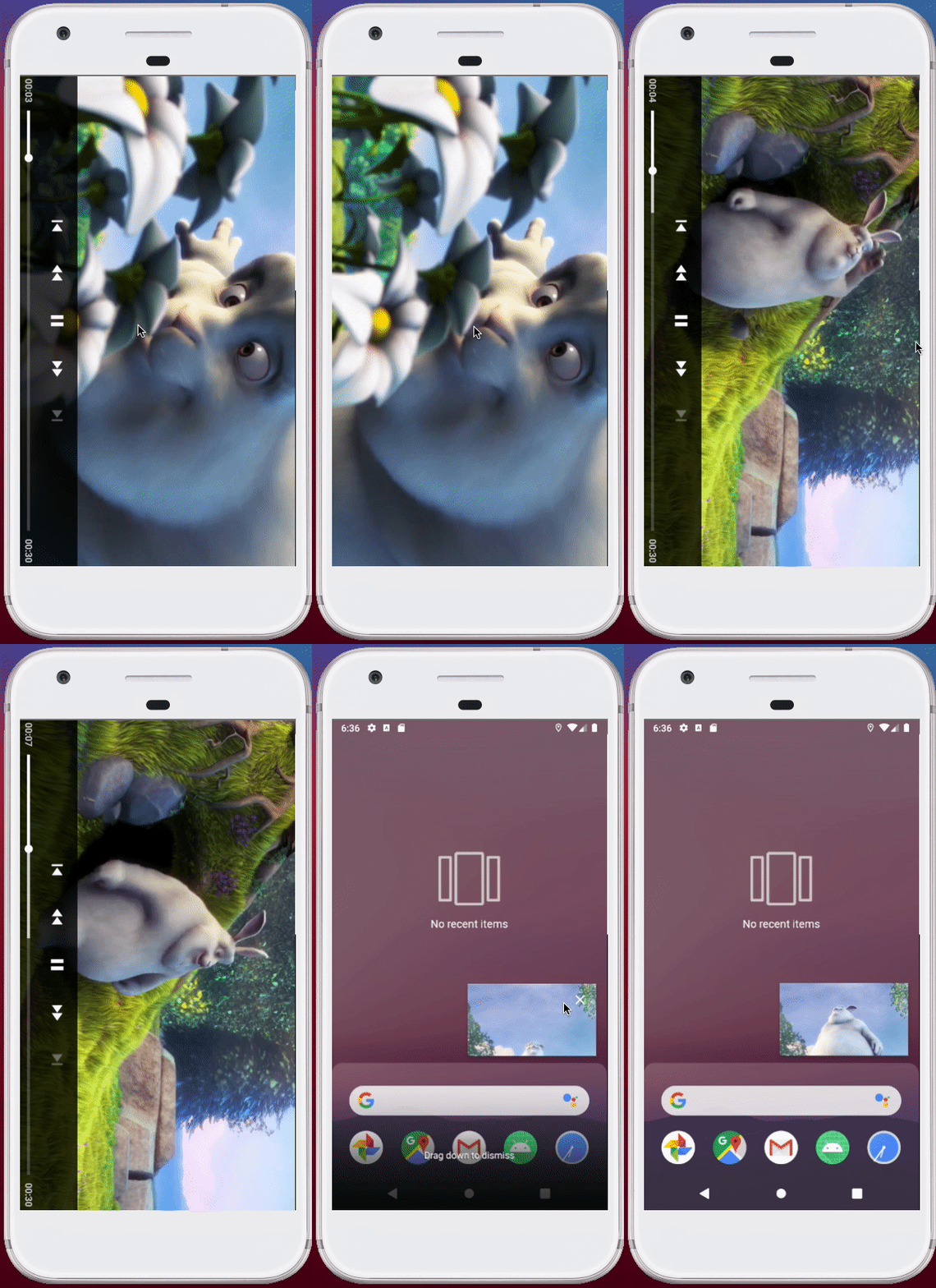
Picture-in-Picture is a special kind of multi-window mode. When it triggers, your Activity shrinks into a floating window that stays on top of whatever the user does next, so a video keeps playing while they reply to a message or open another app. YouTube and Google Maps navigation use it.
If you are working with a MediaPlayer, ExoPlayer (now Media3), a video call, or any streaming resource, PiP lets the user check a notification without pausing the video.
Why should you bother with Picture-in-Picture?
You declare support in the manifest, build a small params object, and tell the system when to enter the floating window. If you have fifteen minutes, you can have a working version.

One thing has not changed since I first wrote this: PiP only works on Android Oreo and above (SDK 26+). Do not call the PiP APIs on anything below API 26, because they will crash. Every entry point below is guarded by a version check for exactly this reason.
How to add Picture-in-Picture mode to your Android player
Here is the full implementation in five steps. In my case the player lives in MainActivity, so adjust the Activity name to match yours.
- Declare PiP support in
AndroidManifest.xml. Add these two attributes to the activity that hosts your player.supportsPictureInPictureopts the activity in, and theconfigChangeslist tells Android you will handle the resize yourself instead of letting the system recreate the activity when the window shrinks.
// Lines to Add
android:supportsPictureInPicture="true"
android:configChanges="screenSize|smallestScreenSize|screenLayout|orientation"
Before:
// Old Code
<activity
    android:name=".MainActivity"
    android:screenOrientation="landscape">
/* */
</activity>
After:
// New Code
<activity
    android:name=".MainActivity"
    android:supportsPictureInPicture="true"
    android:configChanges="screenSize|smallestScreenSize|screenLayout|orientation"
    android:screenOrientation="landscape">
/* */
</activity>- Build the parameters PiP needs. Create this function in your activity. It returns a
PictureInPictureParamsobject, which is where you configure the floating window (actions, aspect ratio, and more). For a minimal version you can leave the actions empty.
@TargetApi(Build.VERSION_CODES.O)
private fun updatePic2PicParams() = PictureInPictureParams.Builder()
        .setActions(emptyList())
.build()- Wire the params into your activity and gate everything behind a support check. In
onCreate, once the view is set up, check whether the player is playing and whether the device supports PiP before callingsetPictureInPictureParams.setPictureInPictureParamsis an Activity function.
// MainActivity.kt
override fun onCreate(savedInstanceState: Bundle?) {
    super.onCreate(savedInstanceState)
    binding = ActivityMainBinding.inflate(layoutInflater)
    setContentView(binding.root)
    // Include this line
    initObservers()
}

// Create this private method
private fun initObservers() {
    if (isPlaying && hasPipSupport()) {
        setPictureInPictureParams(updatePic2PicParams())
    }
}
Add two small extension functions to keep the version and feature checks readable. The first confirms the device is on Oreo or above; the second also confirms the hardware advertises PiP support, because some devices and Android TV configurations do not.
// BooleanExt.kt
// Check if the device is SDK Oreo or above and has Picture-in-Picture support

fun Context.isOreoOrAbove(): Boolean {
    return android.os.Build.VERSION.SDK_INT >= android.os.Build.VERSION_CODES.O
}

fun Context.hasPipSupport(): Boolean {
    return this.isOreoOrAbove() && packageManager.hasSystemFeature(PackageManager.FEATURE_PICTURE_IN_PICTURE)
}- Enter PiP when the user leaves. Override
onUserLeaveHint(), which fires when the user navigates away (for example by pressing home). Guard it with the same support check, then callenterPictureInPictureMode, which is also an Activity function.
override fun onUserLeaveHint() {
    super.onUserLeaveHint()
    if (hasPipSupport() && isPlaying) {
        enterPictureInPictureMode(updatePic2PicParams())
    }
}- Hide your player controls in the floating window. This step is optional. Override
onPictureInPictureModeChangedand toggle the controller so the seek bar and buttons disappear while shrunk, then come back at full screen.
override fun onPictureInPictureModeChanged(isInPictureInPictureMode: Boolean, newConfig: Configuration?) {
    super.onPictureInPictureModeChanged(isInPictureInPictureMode, newConfig)

    // add this line to your PlayerView
    binding.playerView.useController = !isInPictureInPictureMode
}
That is everything you need for a working floating window while your users do something else.
Has anything changed since Android 12?
Yes, and this is the part I would do differently today. The onUserLeaveHint() approach in step 4 still works, but on modern devices that use gesture navigation it can look janky, because your app only asks to enter PiP after the exit gesture has already started. Android 12 (API 31) fixed this with auto-enter. Instead of triggering PiP yourself, you set a flag on the params and the system handles the transition smoothly as part of the home gesture.
@RequiresApi(Build.VERSION_CODES.S)
private fun autoEnterParams() = PictureInPictureParams.Builder()
        .setAutoEnterEnabled(true)
        .build()
In 2026, keep the onUserLeaveHint() path as a fallback for API 26 to 30, and on API 31 and above call setPictureInPictureParams(autoEnterParams()) whenever playback starts or stops. Update the params again with setAutoEnterEnabled(false) when the video pauses, so the window does not follow the user around when there is nothing to watch. On API 31 you can also pass setSeamlessResizeEnabled(true) for smoother resizing of video content. The rest of the setup, the manifest attributes and the support checks, stays exactly the same.
Happy coding.
David Cruz davthecoder.com
Si quieres que tu vídeo siga reproduciéndose en una ventana flotante pequeña cuando el usuario sale de tu app, Picture-in-Picture (PiP) es la función de Android para eso. Está disponible desde Android Oreo (API 26), vive a nivel de Activity y una implementación básica son unos cinco cambios pequeños. El disparo ha cambiado respecto a los tutoriales antiguos, incluida mi versión original de 2020 de este artículo. A fecha de 2026, en Android 12 (API 31) y superiores, deja que el sistema entre solo en PiP, en lugar de llamarlo a mano desde onUserLeaveHint().
¿Qué es el modo Picture-in-Picture?
Picture-in-Picture es un tipo especial de modo multiventana. Cuando se activa, tu Activity se reduce a una ventana flotante que se queda encima de lo siguiente que haga el usuario, de modo que el vídeo sigue mientras responde a un mensaje o abre otra app. YouTube y la navegación de Google Maps lo usan.
Si trabajas con un MediaPlayer, ExoPlayer (ahora Media3), una videollamada o cualquier recurso en streaming, PiP deja que el usuario mire una notificación sin pausar el vídeo.
¿Por qué molestarse con Picture-in-Picture?
Declaras el soporte en el manifest, montas un objeto pequeño de parámetros y le dices al sistema cuándo entrar en la ventana flotante. Si tienes quince minutos, puedes dejar una versión funcionando.
Hay una cosa que no ha cambiado desde la primera vez que lo escribí: PiP solo funciona en Android Oreo en adelante (SDK 26+). No llames a las API de PiP por debajo de la API 26, porque la app se cierra. Cada punto de entrada de más abajo lleva una comprobación de versión precisamente por eso.
Cómo añadir el modo Picture-in-Picture a tu reproductor de Android
Aquí tienes la implementación completa, en cinco pasos. En mi caso el reproductor vive en MainActivity, así que adapta el nombre de la Activity al tuyo.
- Declara el soporte de PiP en
AndroidManifest.xml. Añade estos dos atributos a la activity que aloja tu reproductor.supportsPictureInPictureactiva el soporte en la activity, y la lista deconfigChangesle dice a Android que el cambio de tamaño lo gestionas tú, en vez de dejar que el sistema recree la activity cuando la ventana se reduce.
// Lines to Add
android:supportsPictureInPicture="true"
android:configChanges="screenSize|smallestScreenSize|screenLayout|orientation"
Antes:
// Old Code
<activity
    android:name=".MainActivity"
    android:screenOrientation="landscape">
/* */
</activity>
Después:
// New Code
<activity
    android:name=".MainActivity"
    android:supportsPictureInPicture="true"
    android:configChanges="screenSize|smallestScreenSize|screenLayout|orientation"
    android:screenOrientation="landscape">
/* */
</activity>- Construye los parámetros que necesita PiP. Crea esta función en tu activity. Devuelve un objeto
PictureInPictureParams, y ahí es donde configuras la ventana flotante (acciones, relación de aspecto y lo demás). En una versión mínima puedes dejar las acciones vacías.
@TargetApi(Build.VERSION_CODES.O)
private fun updatePic2PicParams() = PictureInPictureParams.Builder()
        .setActions(emptyList())
.build()- Engancha los parámetros a tu activity y no avances sin una comprobación de soporte. En
onCreate, cuando la vista ya está lista, comprueba si el reproductor está reproduciendo y si el dispositivo soporta PiP antes de llamar asetPictureInPictureParams.setPictureInPictureParamses una función de Activity.
// MainActivity.kt
override fun onCreate(savedInstanceState: Bundle?) {
    super.onCreate(savedInstanceState)
    binding = ActivityMainBinding.inflate(layoutInflater)
    setContentView(binding.root)
    // Include this line
    initObservers()
}

// Create this private method
private fun initObservers() {
    if (isPlaying && hasPipSupport()) {
        setPictureInPictureParams(updatePic2PicParams())
    }
}
Añade dos funciones de extensión pequeñas para que las comprobaciones de versión y de función se lean bien. La primera confirma que el dispositivo está en Oreo o por encima; la segunda confirma, además, que el hardware anuncia soporte de PiP, porque algunos dispositivos y algunas configuraciones de Android TV no lo tienen.
// BooleanExt.kt
// Check if the device is SDK Oreo or above and has Picture-in-Picture support

fun Context.isOreoOrAbove(): Boolean {
    return android.os.Build.VERSION.SDK_INT >= android.os.Build.VERSION_CODES.O
}

fun Context.hasPipSupport(): Boolean {
    return this.isOreoOrAbove() && packageManager.hasSystemFeature(PackageManager.FEATURE_PICTURE_IN_PICTURE)
}- Entra en PiP cuando el usuario se va. Sobrescribe
onUserLeaveHint(), que se ejecuta cuando el usuario abandona la app (por ejemplo, al pulsar inicio). Protégelo con la misma comprobación de soporte y llama después aenterPictureInPictureMode, que también es una función de Activity.
override fun onUserLeaveHint() {
    super.onUserLeaveHint()
    if (hasPipSupport() && isPlaying) {
        enterPictureInPictureMode(updatePic2PicParams())
    }
}- Oculta los controles del reproductor en la ventana flotante. Este paso es opcional. Sobrescribe
onPictureInPictureModeChangedy conmuta el controlador para que la barra de progreso y los botones desaparezcan mientras está encogida, y vuelvan en pantalla completa.
override fun onPictureInPictureModeChanged(isInPictureInPictureMode: Boolean, newConfig: Configuration?) {
    super.onPictureInPictureModeChanged(isInPictureInPictureMode, newConfig)

    // add this line to your PlayerView
    binding.playerView.useController = !isInPictureInPictureMode
}
Eso es todo lo que necesitas para una ventana flotante que funcione mientras tus usuarios hacen otra cosa.
¿Ha cambiado algo desde Android 12?
Sí, y esta es la parte que hoy haría de otra manera. El enfoque con onUserLeaveHint() del paso 4 sigue valiendo, pero en los dispositivos modernos con navegación por gestos puede verse con tirones, porque tu app solo pide entrar en PiP cuando el gesto de salida ya ha empezado. Android 12 (API 31) lo arregló con la entrada automática. En vez de disparar PiP tú, activas una opción en los parámetros y el sistema hace la transición con suavidad, como parte del gesto de inicio.
@RequiresApi(Build.VERSION_CODES.S)
private fun autoEnterParams() = PictureInPictureParams.Builder()
        .setAutoEnterEnabled(true)
        .build()
En 2026, deja el camino de onUserLeaveHint() como respaldo para las API 26 a 30 y, en la API 31 y superiores, llama a setPictureInPictureParams(autoEnterParams()) cada vez que la reproducción arranca o se para. Vuelve a actualizar los parámetros con setAutoEnterEnabled(false) cuando el vídeo se pausa, para que la ventana no se le pegue al usuario cuando no hay nada que ver. En la API 31 también puedes pasar setSeamlessResizeEnabled(true) para que el vídeo cambie de tamaño con más suavidad. El resto de la configuración, los atributos del manifest y las comprobaciones de soporte, sigue exactamente igual.
¡Feliz programación!
David Cruz davthecoder.com
Loading comments…Cargando comentarios…