
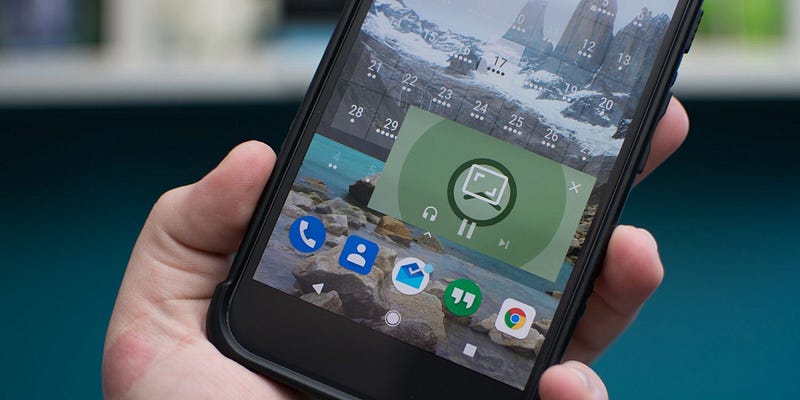
If you want your video to keep playing in a small floating window after the user leaves your app, Picture-in-Picture (PiP) is the Android feature you are looking for, and it needs surprisingly little code. It has shipped since Android Oreo (API 26), it lives at the Activity level, and a basic implementation is about five small changes. The one thing worth updating from older tutorials, including my original 2020 version of this post, is how you trigger it: as of 2026, on Android 12 (API 31) and above you should let the system auto-enter PiP rather than calling it by hand from onUserLeaveHint().
What is Picture-in-Picture mode?
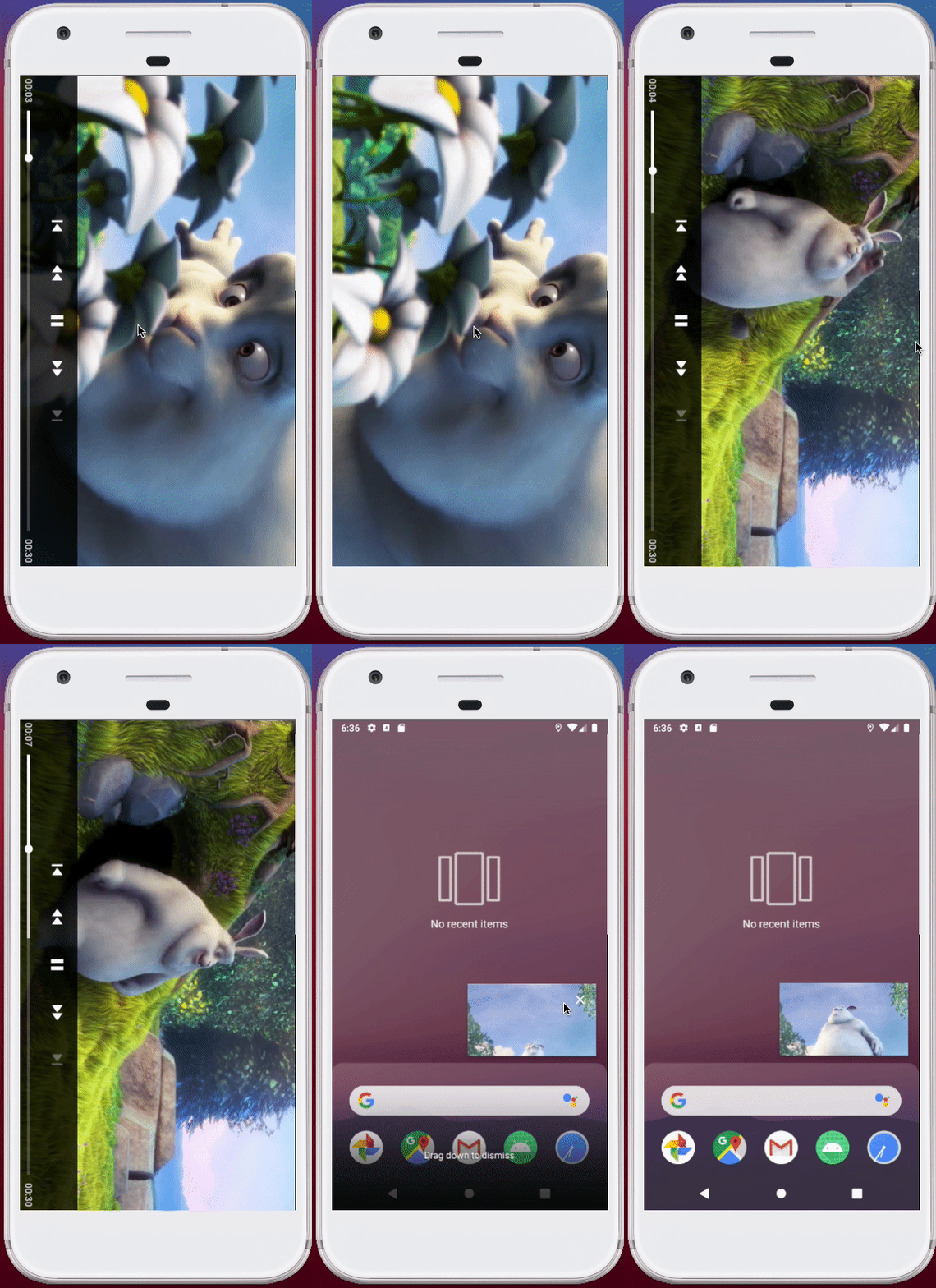
Picture-in-Picture is a special kind of multi-window mode. When it triggers, your Activity shrinks into a floating window that stays on top of whatever the user does next, so a video keeps playing while they reply to a message or open another app. YouTube, Google Maps navigation, and most video-call apps all use it.
If you are working with a MediaPlayer, ExoPlayer (now Media3), a video call, or any streaming resource, PiP is worth wiring up. It is the difference between a user who pauses your content to check a notification and a user who never has to stop watching. Losing playback progress is one of the small frictions that quietly pushes people out of an app, and PiP removes it.
Why should you bother with Picture-in-Picture?
The honest answer is that the effort-to-payoff ratio is excellent. This is not a feature that demands a rewrite or a new architecture. It works close to out of the box: you declare support in the manifest, build a small params object, and tell the system when to enter the floating window. If you have fifteen minutes, you can have a working version.

One thing has not changed since I first wrote this: PiP only works on Android Oreo and above (SDK 26+). Do not call the PiP APIs on anything below API 26, because they will crash. Every entry point below is guarded by a version check for exactly this reason.
How to add Picture-in-Picture mode to your Android player
Here is the full implementation in five steps. In my case the player lives in MainActivity, so adjust the Activity name to match yours.
- Declare PiP support in
AndroidManifest.xml. Add these two attributes to the activity that hosts your player.supportsPictureInPictureopts the activity in, and theconfigChangeslist tells Android you will handle the resize yourself instead of letting the system recreate the activity when the window shrinks.
// Lines to Add
android:supportsPictureInPicture="true"
android:configChanges="screenSize|smallestScreenSize|screenLayout|orientation"
Before:
// Old Code
<activity
    android:name=".MainActivity"
    android:screenOrientation="landscape">
/* */
</activity>
After:
// New Code
<activity
    android:name=".MainActivity"
    android:supportsPictureInPicture="true"
    android:configChanges="screenSize|smallestScreenSize|screenLayout|orientation"
    android:screenOrientation="landscape">
/* */
</activity>- Build the parameters PiP needs. Create this function in your activity. It returns a
PictureInPictureParamsobject, which is where you configure the floating window (actions, aspect ratio, and more). For a minimal version you can leave the actions empty.
@TargetApi(Build.VERSION_CODES.O)
private fun updatePic2PicParams() = PictureInPictureParams.Builder()
        .setActions(emptyList())
.build()- Wire the params into your activity and gate everything behind a support check. In
onCreate, once the view is set up, check whether the player is playing and whether the device actually supports PiP before callingsetPictureInPictureParams. Note thatsetPictureInPictureParamsis an Activity function.
// MainActivity.kt
override fun onCreate(savedInstanceState: Bundle?) {
    super.onCreate(savedInstanceState)
    binding = ActivityMainBinding.inflate(layoutInflater)
    setContentView(binding.root)
    // Include this line
    initObservers()
}

// Create this private method
private fun initObservers() {
    if (isPlaying && hasPipSupport()) {
        setPictureInPictureParams(updatePic2PicParams())
    }
}
Add two small extension functions to keep the version and feature checks readable. The first confirms the device is on Oreo or above; the second also confirms the hardware advertises PiP support, because some devices and Android TV configurations do not.
// BooleanExt.kt
// Check if the device is SDK Oreo or above and has Picture-in-Picture support

fun Context.isOreoOrAbove(): Boolean {
    return android.os.Build.VERSION.SDK_INT >= android.os.Build.VERSION_CODES.O
}

fun Context.hasPipSupport(): Boolean {
    return this.isOreoOrAbove() && packageManager.hasSystemFeature(PackageManager.FEATURE_PICTURE_IN_PICTURE)
}- Enter PiP when the user leaves. Override
onUserLeaveHint(), which fires when the user navigates away (for example by pressing home). Guard it with the same support check, then callenterPictureInPictureMode, which is also an Activity function.
override fun onUserLeaveHint() {
    super.onUserLeaveHint()
    if (hasPipSupport() && isPlaying) {
        enterPictureInPictureMode(updatePic2PicParams())
    }
}- Hide your player controls in the floating window. This step is optional but makes a real difference. Override
onPictureInPictureModeChangedand toggle the controller so the seek bar and buttons disappear while shrunk, then come back at full screen.
override fun onPictureInPictureModeChanged(isInPictureInPictureMode: Boolean, newConfig: Configuration?) {
    super.onPictureInPictureModeChanged(isInPictureInPictureMode, newConfig)

    // add this line to your PlayerView
    binding.playerView.useController = !isInPictureInPictureMode
}
That is everything you need for a working floating window while your users do something else.
Has anything changed since Android 12?
Yes, and this is the part I would do differently today. The onUserLeaveHint() approach in step 4 still works, but on modern devices that use gesture navigation it can look janky, because your app only asks to enter PiP after the exit gesture has already started. Android 12 (API 31) fixed this with auto-enter. Instead of triggering PiP yourself, you set a flag on the params and the system handles the transition smoothly as part of the home gesture.
@RequiresApi(Build.VERSION_CODES.S)
private fun autoEnterParams() = PictureInPictureParams.Builder()
        .setAutoEnterEnabled(true)
        .build()
The pattern that ages best in 2026 is this: keep the onUserLeaveHint() path as a fallback for API 26 to 30, and on API 31 and above call setPictureInPictureParams(autoEnterParams()) whenever playback starts or stops. Update the params again with setAutoEnterEnabled(false) when the video pauses, so the window does not follow the user around when there is nothing to watch. On API 31 you can also pass setSeamlessResizeEnabled(true) for smoother resizing of video content. The rest of the setup, the manifest attributes and the support checks, stays exactly the same.
Frequently Asked Questions
What minimum Android version does Picture-in-Picture require?
Android Oreo, API 26. The PictureInPictureParams, setPictureInPictureParams, and enterPictureInPictureMode APIs do not exist below that, so calling them on an older device will crash. Always guard every PiP call with a version check, which is what the isOreoOrAbove() and hasPipSupport() extensions do.
Do I still need to override onUserLeaveHint?
Only for API 26 to 30. On Android 12 (API 31) and above, setAutoEnterEnabled(true) lets the system enter PiP as part of the home gesture, which looks smoother than the manual call. A robust app keeps onUserLeaveHint() as the fallback for older versions and uses auto-enter on API 31+.
Why check hasSystemFeature(FEATURE_PICTURE_IN_PICTURE) if the device is on Oreo?
Because being on API 26 or above does not guarantee PiP is available. The feature can be absent on some device configurations, so checking packageManager.hasSystemFeature(PackageManager.FEATURE_PICTURE_IN_PICTURE) is what actually tells you the floating window is supported before you try to use it.
How do I hide the player controls in the floating window?
Override onPictureInPictureModeChanged and set useController on your PlayerView to the inverse of isInPictureInPictureMode. Controls disappear while the window is small and return when the user restores full screen.
Happy coding.
David Cruz davthecoder.com
Loading comments…